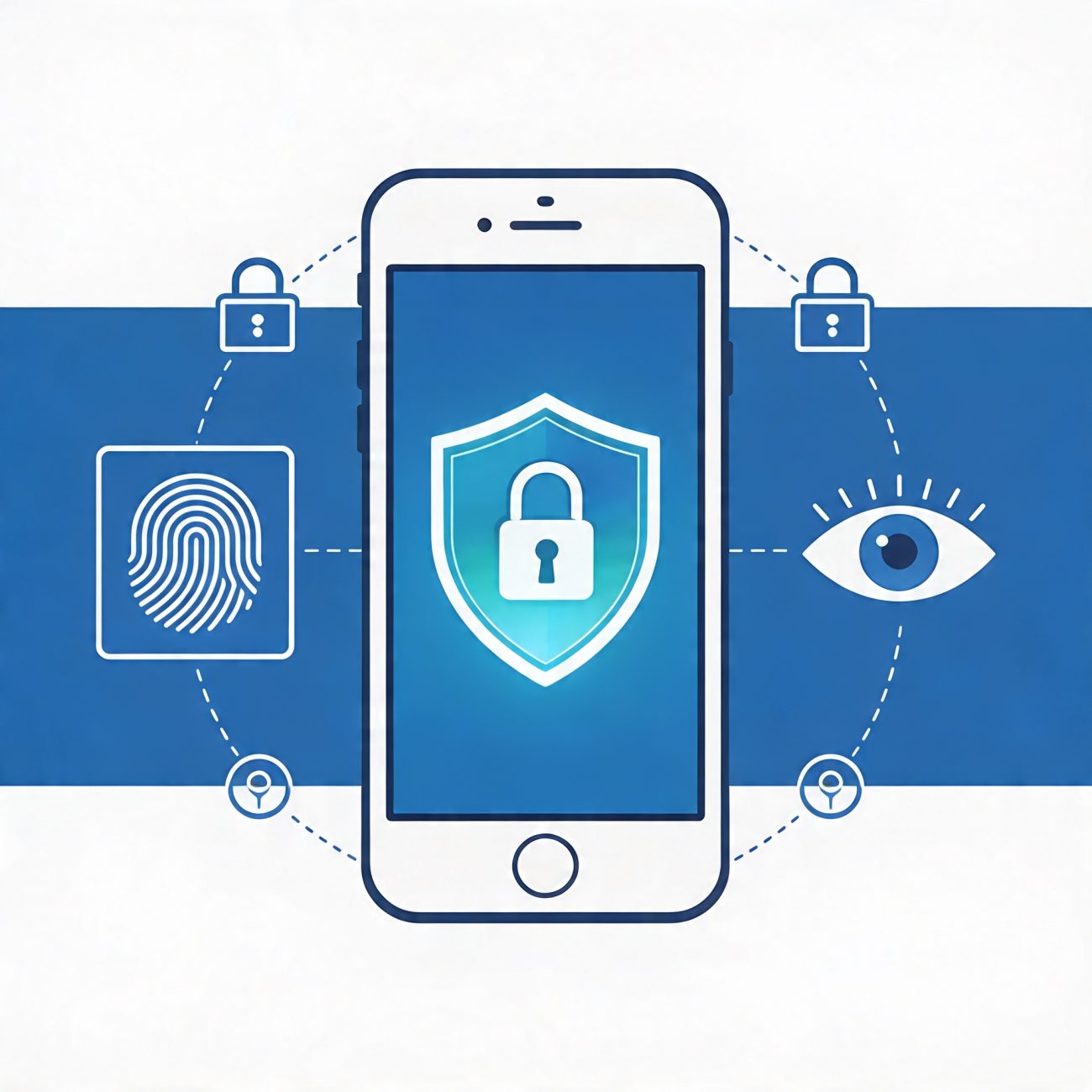
The Complete Guide to iPhone Security in 2026
By SecureGuardBlog Team | Published April 16, 2026
Introduction
Apple iPhones are widely regarded as some of the most secure consumer devices available. With regular security updates, strong encryption, and robust privacy controls, iPhone users have powerful tools for protection. However, no device is completely immune to threats. This guide covers essential security practices to protect your iPhone and the data it contains.
Why iPhone Security Matters
Your iPhone contains sensitive personal and financial information including messages, photos, banking apps, login credentials, and location history. A compromised device can lead to identity theft, unauthorized access to accounts, financial loss, and privacy violations. Understanding how to protect your iPhone is essential in today’s digital environment.
Understanding iOS Security Features
iPhone security relies on multiple layers of protection.
The Secure Enclave:
Apple’s Secure Enclave is a dedicated coprocessor that stores encryption keys, biometric data, and other sensitive information separately from the main processor. Even if someone gains access to the device, they cannot easily extract this data.
Encryption:
Files on iOS are encrypted by default. Each file is encrypted with a unique key, which itself is protected by device passcode and user authentication. This ensures that stolen files remain unreadable.
App Sandboxing:
iOS applications run in isolated environments. Each app can only access its own data and communicate with other apps through defined pathways. This prevents one compromised app from affecting others.
App Store Security:
All apps distributed through the official App Store undergo security review. This reduces the risk of malware and malicious software compared to third-party app sources.
Automatic Updates:
iOS devices receive security updates directly from Apple. Enabling automatic updates ensures protection against newly discovered vulnerabilities.
Setting a Strong Passcode
The passcode is the primary barrier protecting your iPhone data.
Passcode Recommendations:
- Use a custom six-digit or longer code
- Consider using alphanumeric passcodes for complex security
- Avoid obvious patterns like 1234, 9999, or personal dates
- Enable alphanumeric passcodes in Settings > Face ID & Passcode
What to Avoid:
- Do not use biometric authentication as the sole method
- Avoid reusing passwords across different services
- Do not share passcode with family members or friends
Passcode Security Features:
The passcode protects encryption keys. Without the correct passcode, data remains inaccessible even if the device is physically accessed.
Setting Up Face ID Safely
Face ID provides convenient and secure biometric authentication.
Proper Face ID Setup:
- Register your face in a well-lit environment
- Register both normal and relaxed facial states
- Update registration periodically if your appearance changes
- Disable Raise to Wake for Face ID for enhanced security
Face ID Limitations:
- May unlock with identical twins in some cases
- Can be affected by major facial changes
- May not work with masks unless configured
- Should not be used when children are present
Enhanced Face ID Settings:
- Disable Require Attention for Eyes when needed
- Set Face ID to work even with accessories
- Use Passcode for certain sensitive actions
Managing App Permissions
Apps request access to various device features. Limit access to only what is necessary.
Important Permission Categories:
Location Access:
- Grant location only when using the app
- Set some apps to never access location
- Review location history in Privacy & Security settings
- Disable precise location for apps that do not need it
Camera and Microphone Access:
- Grant access only to apps that require it
- Watch for notification indicators when camera or microphone is active
- Review active apps using microphone or camera in Control Center
- Disable access for all apps not explicitly needed
Contacts and Photos:
- Review which apps can access contacts
- Limit photo access to selected photos only
- Disable access for apps that do not require it
Other Permissions:
- Bluetooth: Disable when not needed
- Motion & Fitness: Review which apps require movement data
- Health: Protect sensitive health information carefully
Regular Software Updates
Keeping iOS updated is one of the most important security practices.
Update Best Practices:
- Enable automatic updates for iOS
- Check for security updates regularly
- Install updates within the first week of release
- Review update notes for security improvements
What to Update:
- iOS operating system updates
- App updates from the App Store
- Firmware updates for connected accessories
- System settings that may improve security
Update Schedule:
- Major iOS releases: Install immediately
- Security updates: Install within seven days
- Maintenance releases: Update within one month
App Security Practices
Not all apps carry the same risk.
Download Safety:
- Only download from the official App Store
- Check app developer reputation before installing
- Read app reviews and ratings
- Verify app permissions before granting access
- Remove unused apps regularly
Dangerous App Behaviors:
- Apps requesting excessive permissions
- Unfamiliar developer names
- Extremely low costs for paid apps
- Poor grammar and spelling in descriptions
- Excessive battery or data usage
Checking App Trustworthiness:
- Verify developer identity in App Store details
- Check number of downloads and ratings
- Look for recent updates indicating active maintenance
- Search online for app security reviews
- Use App Privacy Reports to monitor app behavior
Managing Apple ID Security
Your Apple ID controls access to virtually all Apple services and devices.
Apple ID Security Checklist:
- Use a strong, unique password
- Enable two-factor authentication immediately
- Keep recovery phone number current
- Review trusted devices regularly
- Check account access in Apple ID settings
- Use a dedicated email address for Apple ID
- Monitor account activity for suspicious actions
Two-Factor Authentication Benefits:
- Requires device confirmation for new sign-ins
- Protects against password theft
- Prevents unauthorized account changes
- Alerts you to suspicious login attempts
Two-Factor Authentication Setup:
- Go to Settings > [Your Name] > Password & Security
- Tap Set Up Two-Factor Authentication
- Follow prompts to add trusted devices
- Add recovery phone number
- Save recovery key in a secure location
Finding and Locking Lost Devices
Apple provides tools to locate and protect lost or stolen iPhones.
Find My Network Features:
- Locate device location on a map
- Play sound to find nearby devices
- Enable Lost Mode to lock the device
- Display a message on the screen with contact information
- Remotely erase the device if recovery is impossible
Lost Mode Activation:
- Open Find My app or iCloud.com
- Select the device from your account
- Turn on Lost Mode
- Add a contact message and phone number
- Monitor status for device location updates
Remote Erase Procedure:
- This permanently deletes all data
- Use this option only if device cannot be recovered
- Data cannot be recovered after erasing
- Device will still track location and lock until erased
Email and Phishing Protection
Phishing attacks target iPhone users frequently.
Email Security Practices:
- Do not click links in unexpected emails
- Verify sender addresses carefully
- Be wary of urgent or threatening language
- Check for misspellings and poor grammar
- Hover over links to see actual URLs when possible
- Use webmail to check suspicious links before opening
iOS Mail Features:
- Hide email addresses in sender fields
- Enable loading of remote content only when trusted
- Block images from unknown senders
- Report phishing messages through email options
Additional Protection:
- Use custom email domains for sensitive accounts
- Enable email privacy protection in Mail settings
- Review which apps have email access
- Use separate email addresses for different purposes
Wi-Fi Security
Public Wi-Fi networks can expose your data.
Wi-Fi Security Recommendations:
- Avoid using public Wi-Fi for sensitive transactions
- Enable private Wi-Fi addresses in settings
- Use VPN on untrusted networks
- Turn off Wi-Fi when not needed
- Do not connect to open networks
- Verify network names carefully
Private Wi-Fi Address Setup:
- Go to Settings > Wi-Fi > tap the i icon
- Enable Private Wi-Fi Address
- This prevents tracking across networks
VPN Benefits:
- Encryption for all network traffic
- Protection from public Wi-Fi snooping
- Bypass network censorship
- Protect location privacy
When to Use VPN:
- Public Wi-Fi hotspots
- Untrusted networks
- International travel
- Browsing sensitive information
Location Services Management
Location data reveals valuable information about your habits and routines.
Location Privacy Settings:
- Review which apps access location
- Set apps to When In Use instead of Always
- Disable location for apps that do not need it
- Turn off Location Services completely when not needed
- Use precise location sparingly
System Services Location:
- Review system services accessing location
- Disable Location-based HomeKit and Emergency SOS
- Turn off significant locations history
- Disable frequently visited places if not needed
Enhanced Location Security:
- Set app-specific location permissions
- Use system services like Find My only when needed
- Review location access in Privacy & Security settings
- Disable location entirely when traveling
Messages and Communication Security
Messages contain sensitive personal information.
iMessage Security:
- Use End-to-End encryption for iMessage
- Enable Message Encryption in Settings
- Verify contact identity when possible
- Be cautious with message requests from unknown numbers
WhatsApp Security:
- Enable End-to-End encryption
- Set up disappearing messages
- Verify contact safety numbers
- Enable screen lock for the app
General Communication Practices:
- Block suspicious contacts
- Report spam messages
- Do not share personal information in messages
- Use strong passwords for communication accounts
- Enable two-factor authentication for messaging apps
Backup and Data Recovery
Regular backups protect against data loss.
iCloud Backup Setup:
- Enable automatic backups in Settings > [Your Name] > iCloud > iCloud Backup
- Ensure sufficient iCloud storage space
- Keep device connected to power during backup
- Verify backup completion regularly
Device Restore Options:
- Use iCloud backup for cloud recovery
- Use Finder or iTunes for computer backup
- Backup to encrypted computer storage
- Test restore process periodically
What to Back Up:
- Photos and videos
- Messages and communications
- App data and settings
- Contacts and calendars
- Health and fitness data
Biometrics and Privacy
Biometric data includes Face ID and Touch ID information.
Biometric Security Features:
- Biometric data never leaves the device
- Cannot be used to authenticate outside the Secure Enclave
- Cannot be accessed by apps or system processes
- Not stored in Apple servers or backups
Security Considerations:
- Do not share biometric access
- Disable biometrics for children
- Set passcode as backup method
- Remove enrolled faces when selling device
Parental Control and Screen Time
Protect children and manage usage on devices.
Screen Time Features:
- Set app limits for specific categories
- Require passcode for app access
- Restrict content downloads and purchases
- Block inappropriate websites and content
- Set downtime periods for device usage
Family Sharing Setup:
- Create a family group for shared features
- Set up purchase sharing with approval required
- Manage app downloads for family members
- Monitor usage across devices
Selling or Giving Away an iPhone
Prepare devices for transfer to new owners.
Device Transfer Checklist:
- Back up data before transfer
- Remove all media and files
- Deauthorize iTunes purchases
- Remove Apple ID from device
- Erase all content and settings
- Verify device is clean after restoration
Factory Reset Procedure:
- Go to Settings > General > Transfer or Reset iPhone
- Tap Erase All Content and Settings
- Enter passcode and confirm action
- Wait for the process to complete
After Reset:
- Confirm all data is removed
- Verify device restarts normally
- Test that Apple ID is removed
- Set up device fresh as new owner
Conclusion
iPhone security depends on user behavior and configuration. By following best practices for passcode security, software updates, app management and data protection, users can maintain strong security posture. iOS provides powerful built-in security features that work effectively when properly configured.
Stay informed about new security features and update your practices as threats evolve. Regular security audits of your device settings will help identify and address vulnerabilities before they are exploited.
Final Thoughts:
Your iPhone contains a wealth of personal information. Protecting it requires ongoing attention and good habits. Set up strong security features now, review them periodically, and stay vigilant against phishing and other social engineering attacks. The time invested in security protects against much larger problems later.
